
Course outcomes
Grades
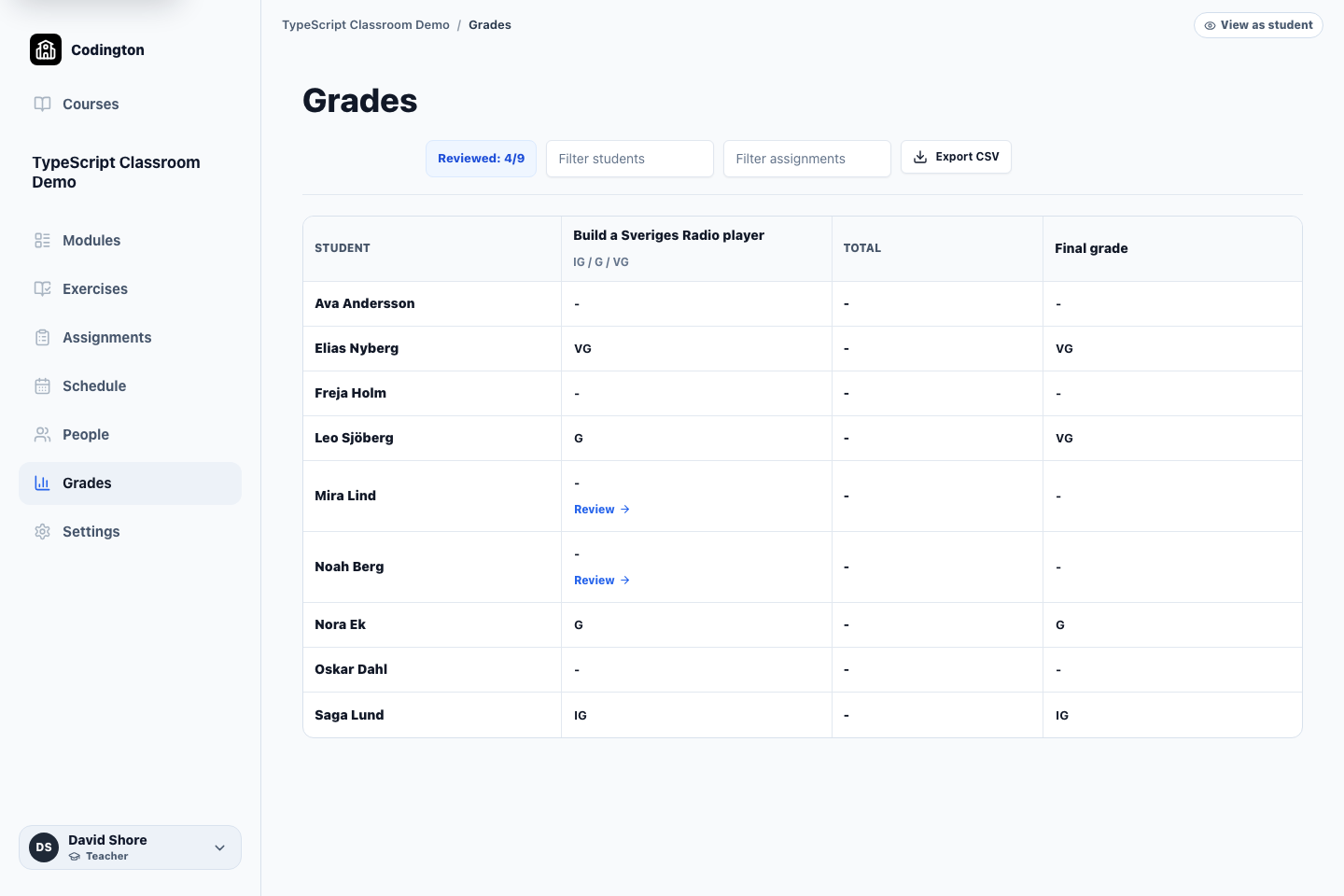
Review assignment results and final course grades in one overview, using the grading system selected for the course.
How it fits into the course
The gradebook brings reviewed assignment results into a course-level overview. Teachers can filter students and assignments, record final course grades, and export the table as CSV.
A course can use a defined grading system such as IG/G/VG, Done/Not done, or points, with assignments inheriting the course default unless configured differently.
What it helps you do
Review the whole course
See assignment results, totals, and final grades without rebuilding the overview in a spreadsheet.
Use the right grading model
Choose a course grading system that matches the way the course is assessed.
Export when needed
Download the gradebook as CSV when results need to move into another school process.
A typical workflow
- 1Choose the default grading system in the course settings.
- 2Review submissions and record assignment feedback and results.
- 3Open Grades to review the course-level overview.
- 4Record final grades or export the table for the next school process.
What students see
Students can see the results and feedback that have been published for their work, together with their course outcome when it is ready.
Current boundaries
- Teachers remain responsible for reviewing project quality and deciding grades.
- Codington does not claim to detect whether work was written with AI.
Related guides
Free plan
Ready to try Codington with your course?
Create a teaching workspace for one course and up to 30 students. No credit card required.
Create your free workspace